Customize your template by adding content to your LinkBossPro Biolink page
After completing the page settings you are ready to add content or links and customize your template.
Remember your page has been pre-populated with 4 links and you will need to customize the button text, button icons, and the redirection or linking of the button to reflect your brand and needs.
Your Biolink page is dynamic meaning that you can edit, add to it or amend it at any time and change what your audience, customers, or fans see.
Let’s get started and customize your template by changing the default content links to suit your brand and needs.
Step1. Click on “Links”
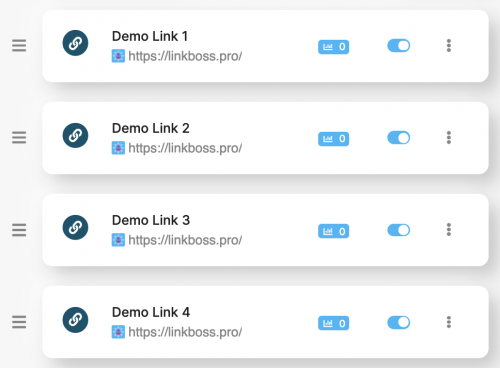
You will now see this view below.
Step2. Click on the 3 dots on the right-hand side of the content link that you would like to edit and select “Edit”.
Now you can enter the destination URL. This is where the user will be redirected after they click on the button. In our example, we want to send them to our website.
Next enter the text that you would like to appear on the button in the “Name” field. This is what the user will see on the button.
After adding the button name, select a thumbnail image for your button by going to “Choose file” under the “Image Thumbnail URL” section.
Select the image that you would like from your PC or Phone and click “open”. We would suggest using a square image.
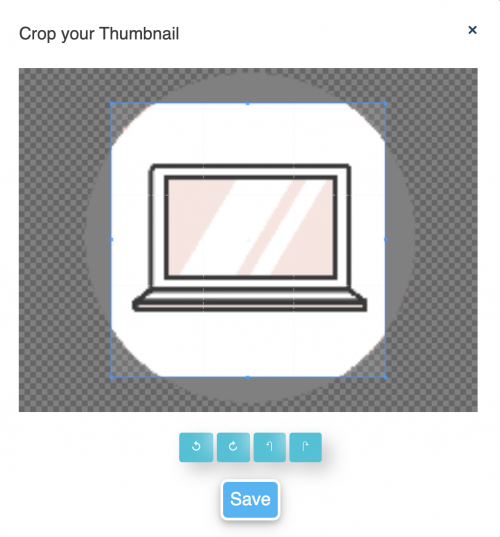
Your image will now open in the image tool. Resize and crop as required and when happy click save.
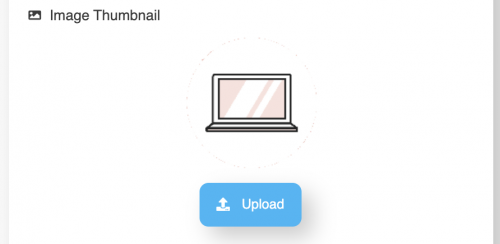
Yourselected Thumbnail image will now appear under the Image thumbnail section on your page. To commit the changes and update you link button, click the “update” button.
Finally, adjust the Text colour to reflect the style and colour that you would like to use for your button name text.
For our example, we have selected a text colour that is the same as the Biolink page background colour.
Now click update and you will see your changes on the page to the right (desktop) and below (mobile).
Now you can continue to customize your template and complete the setup of the other 4 links to complete your Biolink page.
Once complete, you will have a stunning BioLink page that looks like this or similar to the one below.
For help with:
1.How to add your Biolink in your bio, select the platform and follow the tutorial: Instagram, TikTok, YouTube, Twitter.
2.How to schedule links (so that the content only displays on your page at a specific time).
3.To add an additional link or section to your page see “Add content to your LinkBossPro Biolink page (1st steps, a basic guide)“
Still, need help?
If you have any additional questions about adding content to your Biolink page or any other questions, please contact the LinkBossPro customer support team in the chat (blue icon in the bottom right corner) or check out more articles here in our blog or check our Youtube channel.
Alternatively, you can email our support team via support@linkboss.pro