You can add and get detailed analytics with Facebook pixel and Google analytics to increase your conversion tracking, optimization, and re-marketing.
1. Facebook Pixel
The Facebook pixel is an analytics tool that allows you to measure the effectiveness of your advertising by understanding the actions people take on your website. It will help you to:
– Ensure that you can optimise the delivery of your ads to people who are most likely to take action.
In other words, make sure that your ads are being seen by people who are most likely to purchase or fulfill whatever action you have set up.
-Create and Run Dynamic ads on Facebook based on the products people have visited or engaged with on your website.
-Measure cross-platform conversions: See how your customers are moving between devices and platforms before they convert and perform the action that you require.
-Build up a custom audience of people to retarget due to the specific actions they took on your website For example: visit a product page, added an item to their cart, or purchased a product.
-Target a similar audience to your most valuable audience/customer
-Gain detailed audience insights for people who have engaged with your website.
How do I activate and setup my Facebook Pixel?
With our integrated tool, all you need to do is setup your Facebook Pixel by going to Facebook Pixel setup (for facebook pixel and how to setup on your website, click on the guide here).
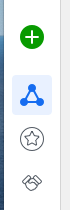
Select the Green Plus Sign (connect data sources)
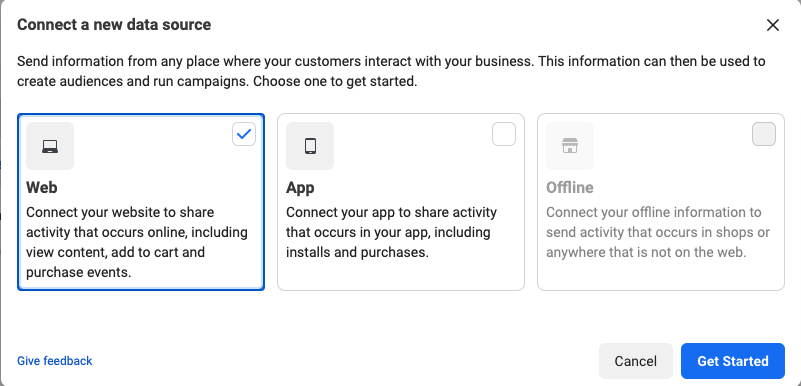
Now select Website or app as required then get started.
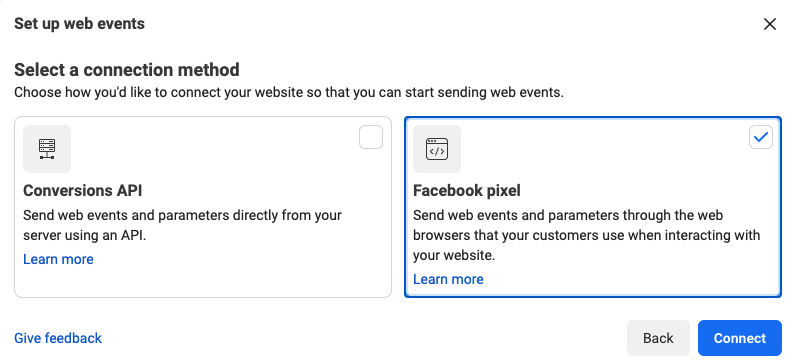
Select Facebook Pixel
Now you can setup the code on your website or app if needed.
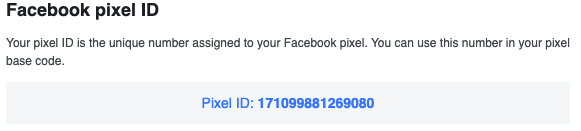
For use on LinkBossPro, copy the pixel ID (top left or in the popup that follows the above selection) and go back to your LinBossPro page setup.
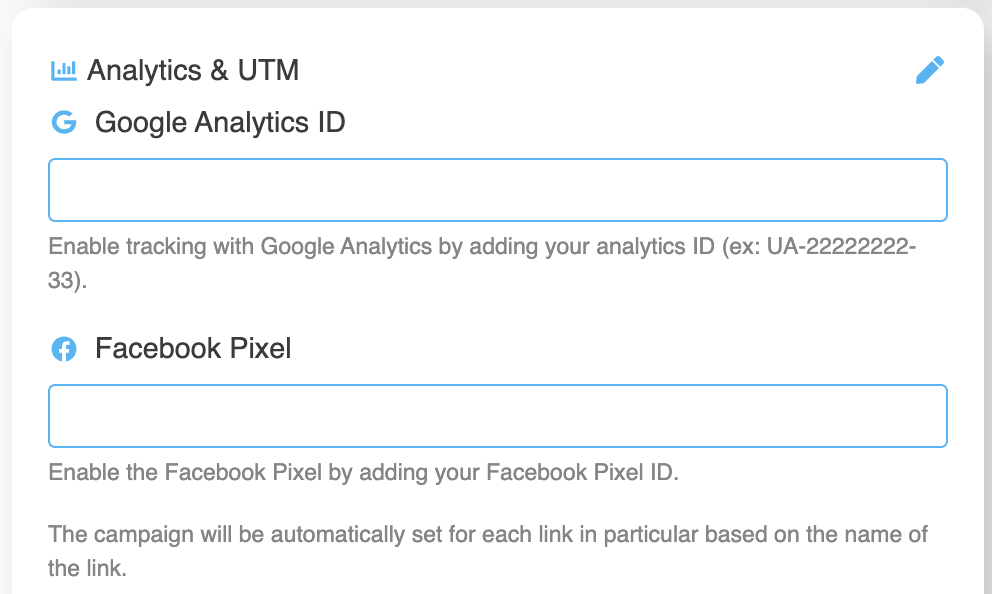
Paste the Facebook Pixel Id into the field under analytics settings for your page.
All set to rock and roll.
Now every time someone visits your page or clicks on content, it will be tracked and build an audience for you to use on Facebook.
2. Google Analytics
Here are some basic instructions to help you understand how to get your “tracking ID”.
Sign in to your Analytics account. Then click “Admin”, select an account from the menu in the ACCOUNT column.
Select a property from the menu in the PROPERTY column.
Under PROPERTY, click “Tracking Info” > “Tracking Code”. Your Tracking ID is displayed at the top of the page.
Copy this and paste it into the “Google Analytics ID” section under analytics on your LinkBossPro page settings.
If you haven’t setup a Google Analytics account yet or require more detailed help with Google Analytics setup, click here.
Check out how to setup SEO Customization guide HERE.
Still, need help?
If you have any additional questions about Facebook Pixel or any other questions, please contact the LinkBossPro customer support team in the chat (blue icon in the bottom right corner) or check out more articles here in our blog or check our Youtube channel.
Alternatively you can email our support team via support@linkboss.pro
We use cookies on our website to give you the most relevant experience by remembering your preferences and repeat visits. By clicking “Accept”, you consent to the use of ALL the cookies.
This website uses cookies to improve your experience while you navigate through the website. Out of these, the cookies that are categorized as necessary are stored on your browser as they are essential for the working of basic functionalities of the website. We also use third-party cookies that help us analyze and understand how you use this website. These cookies will be stored in your browser only with your consent. You also have the option to opt-out of these cookies. But opting out of some of these cookies may affect your browsing experience.
Necessary cookies are absolutely essential for the website to function properly. This category only includes cookies that ensures basic functionalities and security features of the website. These cookies do not store any personal information.
Any cookies that may not be particularly necessary for the website to function and is used specifically to collect user personal data via analytics, ads, other embedded contents are termed as non-necessary cookies. It is mandatory to procure user consent prior to running these cookies on your website.