Include your Twitch live video stream or your Twitch replay video on your Biolink page.
Video live streaming has exploded in the last year and a half, and projections are that it will grow around 180 billion hours by 2027 up from the estimated 1.2 billion hours in 2020.
With LinkBossPro, you can include your live Twitch video stream on your Biolink page and post-broadcast add your replay video.
It’s really easy to do this and below you will find the steps to add your Twitch live video stream to your Biolink page.
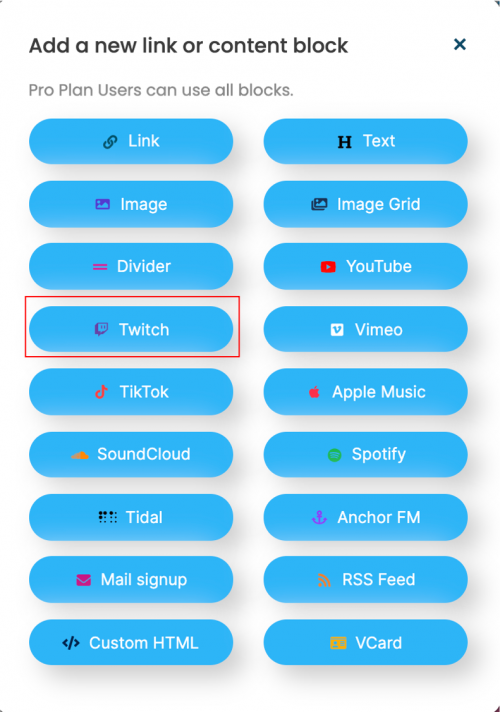
Step1. Open the Biolink page that you want to add your Twitch live video stream to and click “Add a Link”.
Step2. From the link selection tool, click on the “Twitch” option.
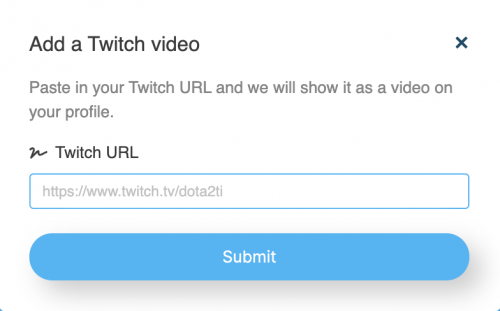
Step3. Input your Twitch live video stream link in the Twitch URL field and click “Submit” then click “Update” to commit the changes.
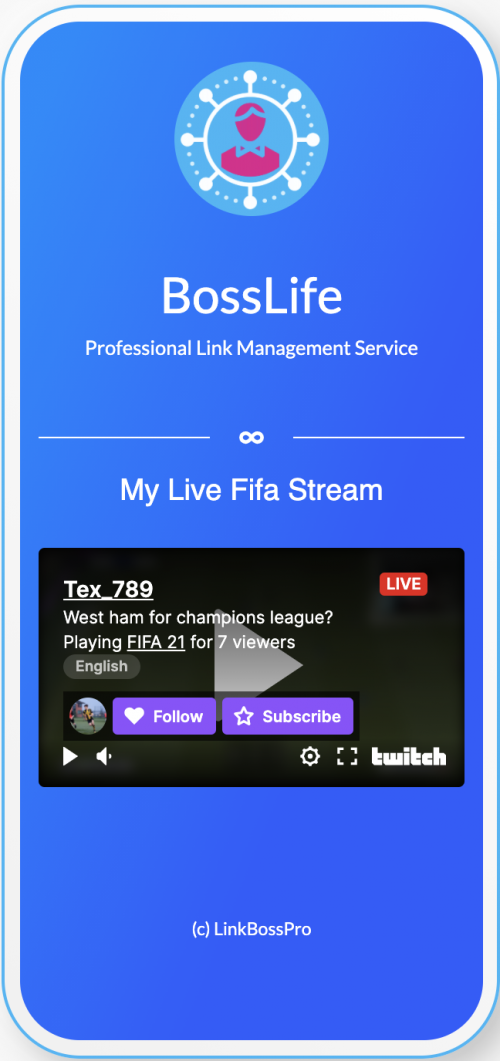
Your Twitch live video stream should now appear on your LinkBossPro Biolink page as per the below image.
Your audience can now find the live stream via your link in bio and via any social media posts with the Biolink page link that features them.
To add your Twitch video replay, follow the same process outlined above.
If you are having problems locating your Twitch live stream link or Twitch replay link, see the help guide below.
How to get your Twitch live video stream link or Twitch video replay link.
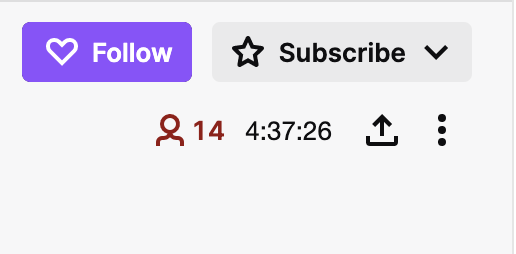
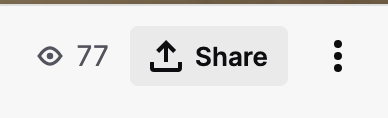
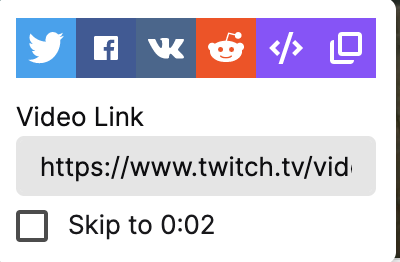
Go to Twitch and your live stream page and click on the Share icon and then click “Copy URL”.
Now follow the guideline above to add your Twitch live video stream to your Biolink page.
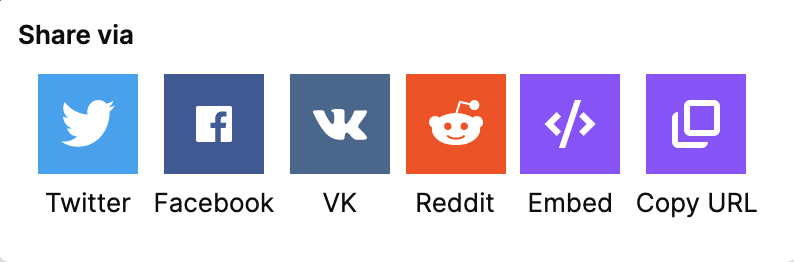
For your Twitch video replay, click on the “Share” button below the replay video and then select the Copy URL Icon on the far right-hand side of the icons as per the below images.
Then follow the steps outlined above to add the Twitch replay video to your Biolink page.
Still, need help?
If you have any additional questions about how to add your Twitch live video stream link or Twitch video replay to your LinkBossPro Biolink page or any other questions, please contact the LinkBossPro customer support team in the chat (blue icon in the bottom right corner) or check out more articles here in our blog or check our Youtube channel.
Alternatively, you can email our support team via support@linkboss.pro
We use cookies on our website to give you the most relevant experience by remembering your preferences and repeat visits. By clicking “Accept”, you consent to the use of ALL the cookies.
This website uses cookies to improve your experience while you navigate through the website. Out of these, the cookies that are categorized as necessary are stored on your browser as they are essential for the working of basic functionalities of the website. We also use third-party cookies that help us analyze and understand how you use this website. These cookies will be stored in your browser only with your consent. You also have the option to opt-out of these cookies. But opting out of some of these cookies may affect your browsing experience.
Necessary cookies are absolutely essential for the website to function properly. This category only includes cookies that ensures basic functionalities and security features of the website. These cookies do not store any personal information.
Any cookies that may not be particularly necessary for the website to function and is used specifically to collect user personal data via analytics, ads, other embedded contents are termed as non-necessary cookies. It is mandatory to procure user consent prior to running these cookies on your website.